How can we help?

Find answers, book lessons, and get started

01

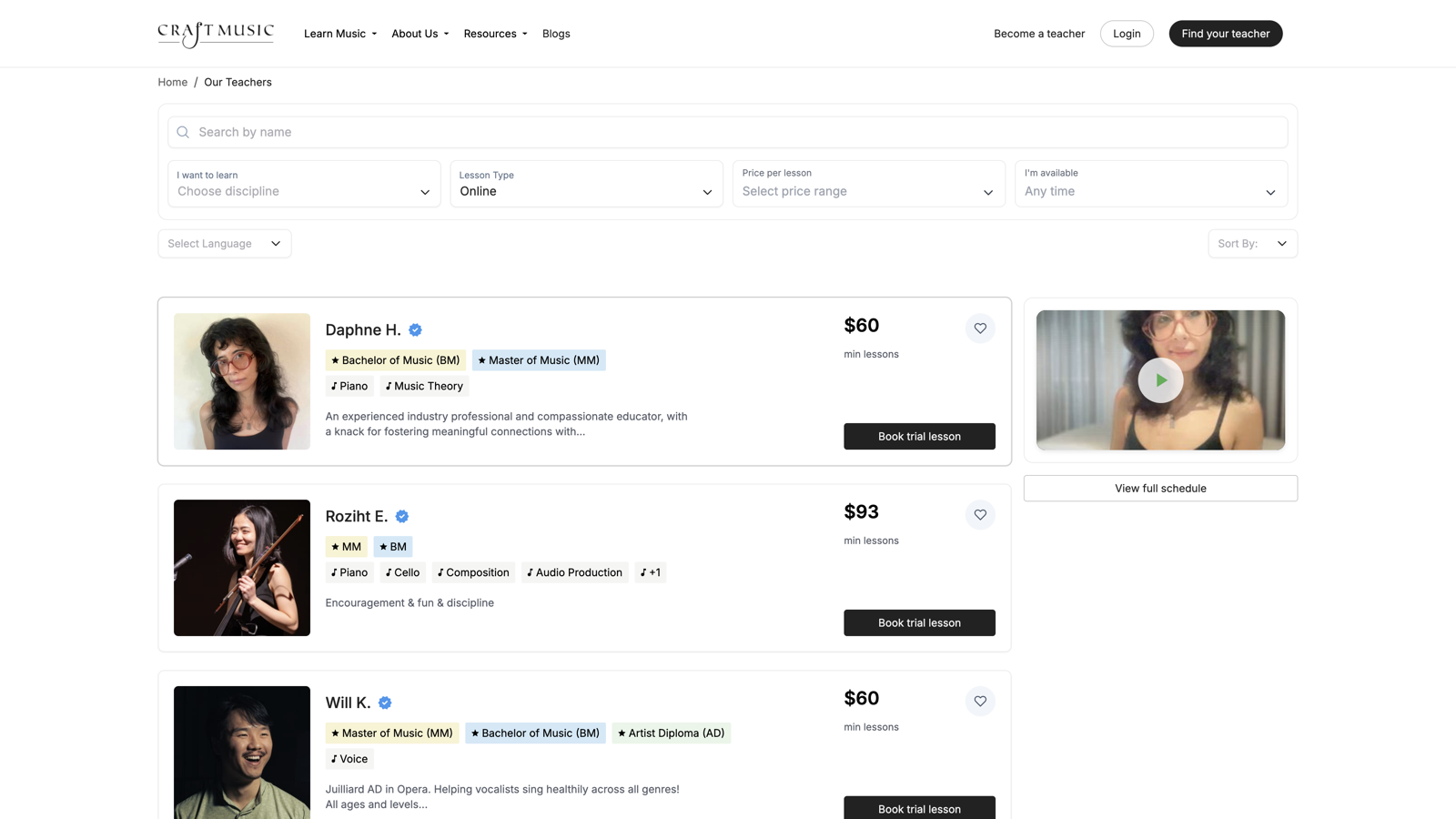
Find Your Fit

Browse professional online educators by your preferred instrument.

02

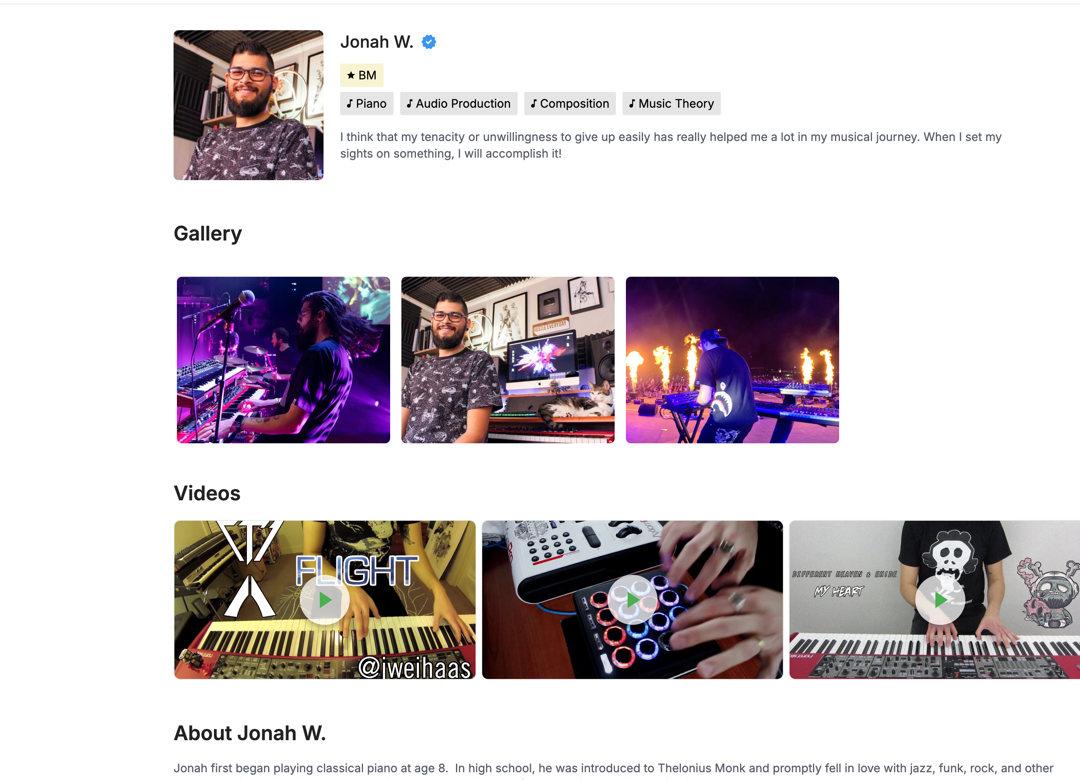
Meet Teachers

Review profiles and watch videos to find your perfect musical match.

03

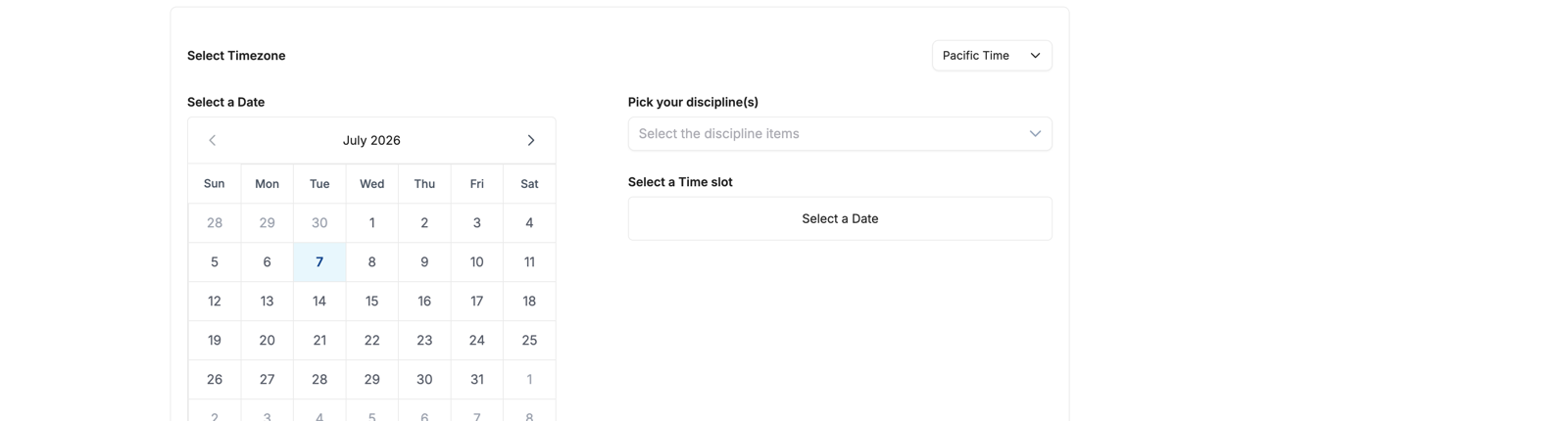
Schedule

Pick a time that fits your life and start your journey.

04

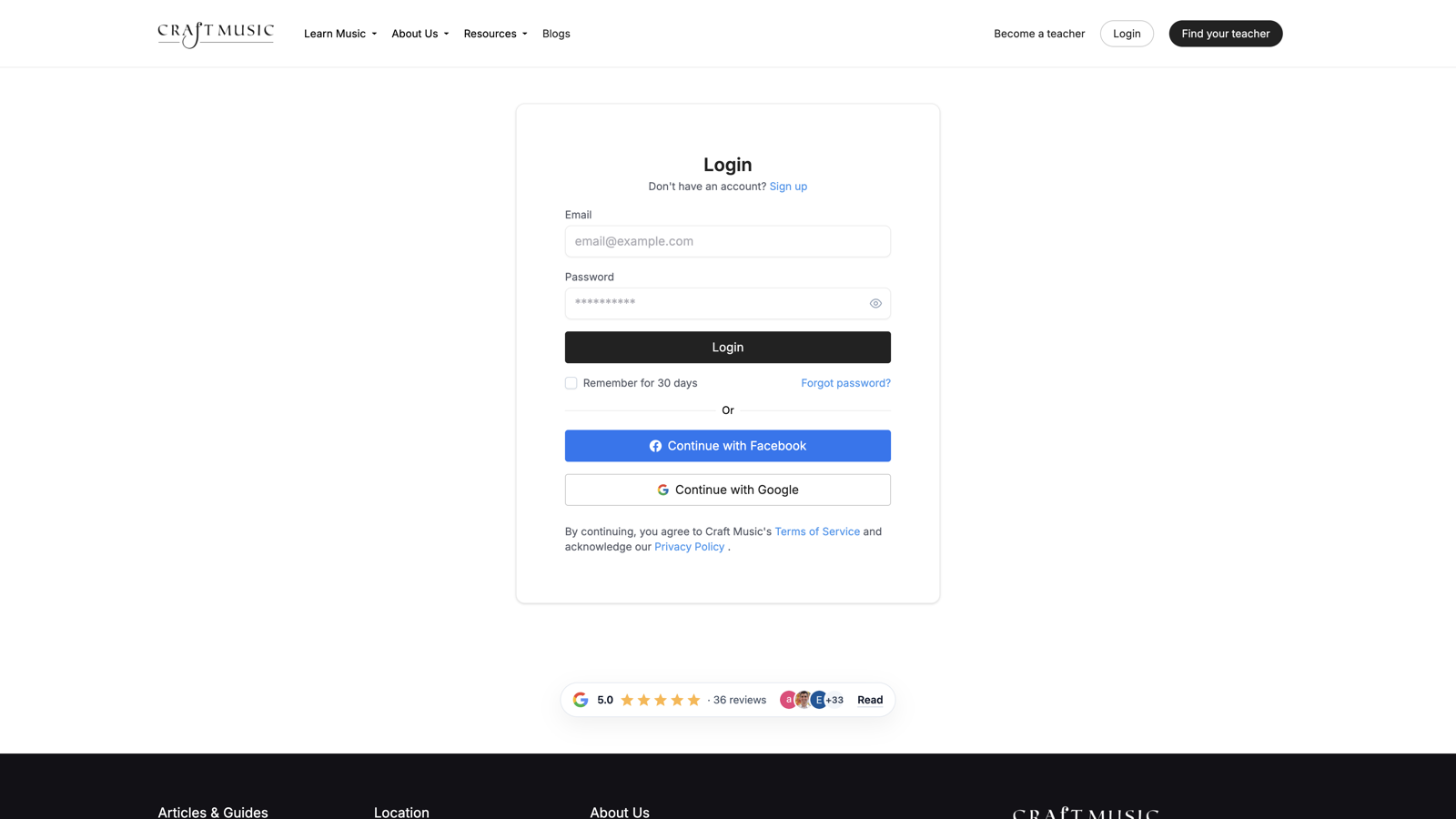
Subscribe

Lock in your weekly spot with flexible 4-week billing cycles.

Online video lessons — for students

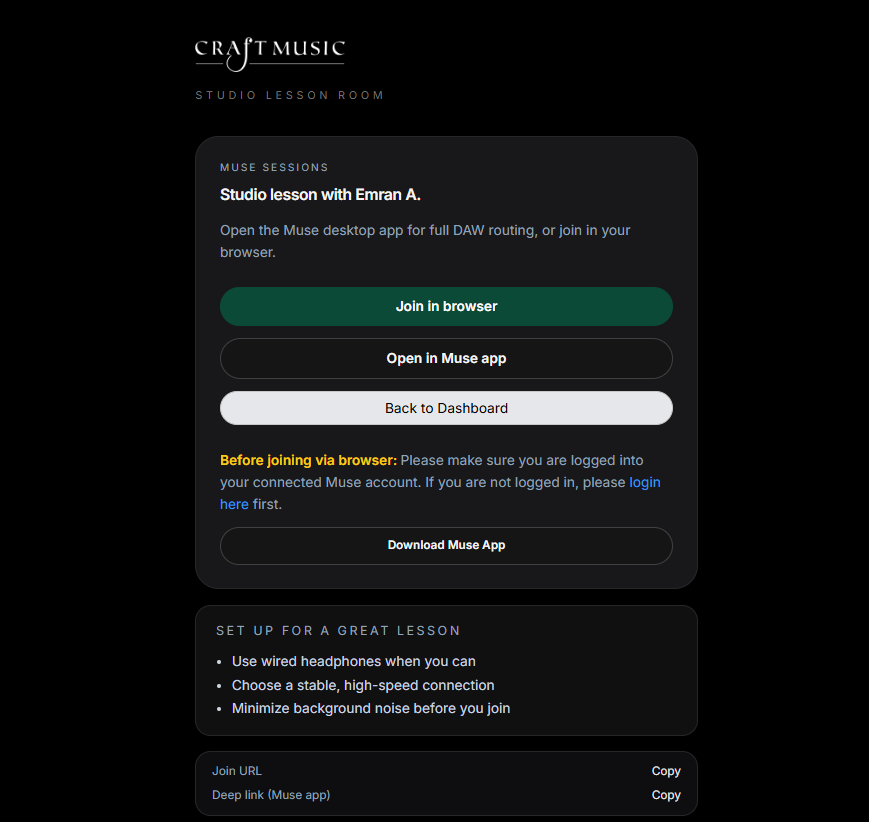
How to get ready for your live lesson in the browser, what you’ll see in the video room, and how to use chat and shared materials with your teacher.

Students Video lesson room
Before you join

Browsers: Most modern browsers work. Use a recent, updated version of whichever you prefer — for example Firefox, Chrome, Edge, Safari, or Brave. If something doesn’t connect or a device doesn’t show up, try refreshing the page or another current browser on the same device.

Find a quiet spot, plug in or charge your device, and use headphones if possible (reduces echo).

Have your lesson link ready from your email or Craft account; open it when it’s time for the lesson.

When the browser asks, allow camera and microphone for the site. If you blocked them by mistake, use the lock or “site settings” icon in the address bar to reset permissions.

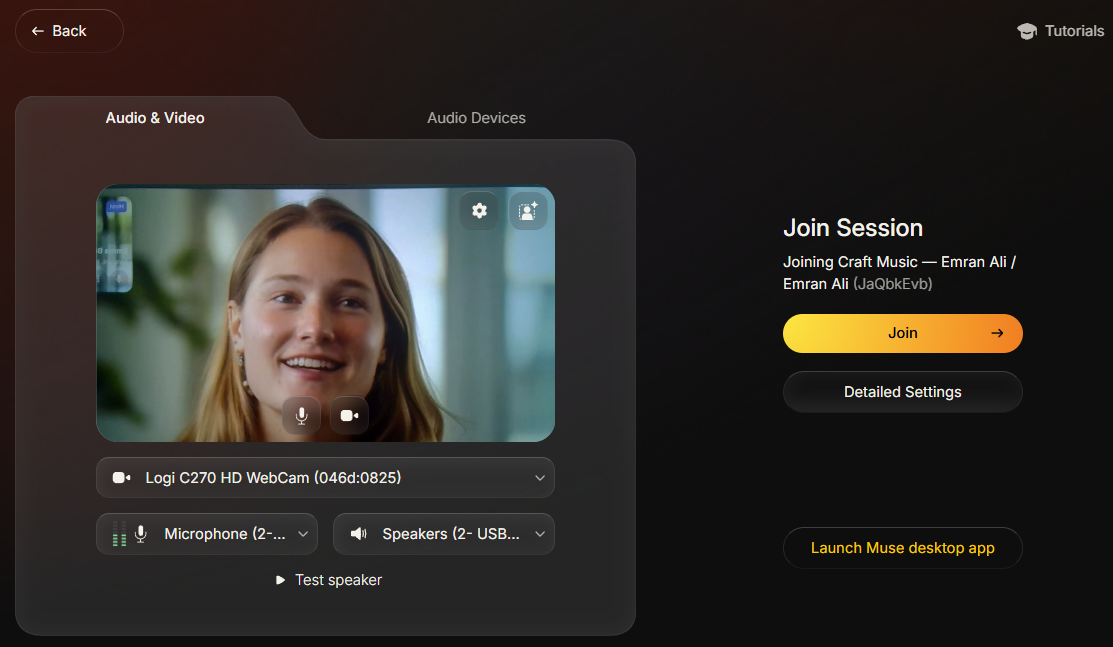
Pre-join screen

After you open your lesson link, you’ll see a pre-join screen. Use it to check your camera, microphone, and speakers or headphones. You can often pick which camera or mic to use here.

When everything looks and sounds right, join the lesson. If something fails, refresh the page or try another updated browser before contacting support.

In the lesson room

You’ll see your teacher’s video (and yours, if your camera is on). The layout may change when someone shares their screen or a document.

Use mute when you’re not speaking. Your teacher may ask you to mute or unmute. If your connection is weak, turn video off — audio can stay on so the lesson continues.

A connection quality indicator (if shown) helps you know if the internet is struggling.

Main controls
  • Microphone & camera — turn them on or off. Your teacher may use host tools to help manage sound.
  • Screen share — usually your teacher shares. If you’re asked to share, choose a window or your entire screen — only show what you’re comfortable sharing.
  • Chat — message during the lesson. Your teacher may send files, images, or PDFs; open or download them from chat when available.
Sheet music, PDFs, and annotations

Your teacher might use presenter or document mode to show PDFs or images. They may use drawing or pointer tools while you watch. If something is hard to read, ask your teacher to zoom or scroll.

Sharing music from your computer (optional)

Most students only need a mic and speakers. If you need high-quality audio from a DAW or music app, your teacher will tell you. That setup uses loopback drivers on Mac or Windows — don’t install them unless asked.

Reference links (only if your teacher instructs you): BlackHole (Mac) · VB-CABLE (Windows)

Something not working?
  • Confirm camera and microphone permissions for the site.
  • Quit other apps that might be using the camera (Zoom, FaceTime, etc.).
  • Update your browser or try another current browser on the same device.
  • If you still can’t join, contact Craft support or your teacher and describe what you see on screen.
Frequently Asked Questions
Quick Quick Answers
How do I sign up for online lessons?
Signing up for online lessons is simple using the process outlined above. Browse through our biographies, look at introductory videos, and find the right teacher for your goals. Be sure to use the filter functions to narrow down your search by instrument and availability.
What instruments do you teach online?
We offer online lessons in piano, guitar, voice, violin, viola, drums, bass, ukulele, composition, music theory, audio production, songwriting, and many additional disciplines.
What is your cancellation policy?
To protect our teachers' schedules, we use the following notice policy for all online lessons:
  • 24 to 12 hours notice: 50% charge of the lesson fee.
  • Less than 12 hours notice: 100% charge of the lesson fee.
What technology do I need?
At minimum: a computer, tablet, or phone with a camera, a stable internet connection, and your instrument. A second device for sheet music and better audio equipment can further improve the experience.
How do I reschedule a lesson?
You can request a reschedule through your student dashboard or by reaching out to your teacher directly. Requests made with enough notice are handled as flexibly as possible, though the standard cancellation policy applies if notice is late.
Basics Getting Started Online
How does the matching process work?
The matching process follows the "How to book a lesson" flow shown above. You can simply click and browse through biographies and videos to find the right kind of teacher for you. Use the filter function to sort by discipline, availability, and price to find your perfect match.
Do I need my own instrument at home?
Yes, students should have access to an instrument for lessons and practice between sessions. For piano, a keyboard is often enough to begin. We can offer guidance if you're looking to purchase or rent.
What age groups do you work with?
Craft Music works with children, teens, adults, and seniors. Our online lessons are personalized for the student's age, learning style, and experience level.
Tech The Online Experience
What digital tools are provided during lessons?
Our dedicated online platform is built specifically for musicians:
  • High-Quality Audio: Native DAW and system audio sharing so your teacher hears your instrument in high fidelity.
  • Lesson Sharing: Integrated document and notation sharing for real-time collaboration.
  • Essential Tools: Built-in video metronome and video tuner for technical accuracy.
  • Communication: Dedicated chat function for notes, links, and messages during and between sessions.
How do I access my lesson link?
Your direct lesson link is always available in your student account under the Lessons section. You will also be notified by email as your scheduled lesson time approaches. Lessons are typically accessed through the Craft Music online platform or Zoom.
How do I get help if I have technical issues?
Students can contact Craft Music directly for support if they have trouble accessing the platform or video room. Our team is available to troubleshoot connection issues.
Billing Billing & Support
What payment methods do you accept?
We accept credit/debit cards and bank transfers. Our platform supports secure single-payment and subscription management options for ongoing students.
How do I reschedule a lesson?
You can request a reschedule through the student dashboard or by contacting your teacher directly. Please note the tiered cancellation policy: 50% charge if within 24–12 hours of the lesson, and 100% if under 12 hours.
Do you offer scholarships or financial aid?
Yes. Need-based support, sibling discounts, and referral benefits may be available. Please contact us to confirm eligibility for online programs.